Google credentials
This document covers credentials for both Google Sheets (for scheduling) and YouTube (for video publishing).
YouTube OAuth 2.0 Credentials
Added in version 2.0: YouTube now uses OAuth 2.0 “authorize first” workflow.
Agoras needs the following OAuth app credentials from Google to access YouTube:
Client ID (OAuth 2.0 Client ID)
Client Secret (OAuth 2.0 Client Secret)
Create Google OAuth Credentials for YouTube
Go to the Google Cloud Console.
Create a new project or select an existing one.
Enable the YouTube Data API v3:
Go to APIs & Services > Library
Search for “YouTube Data API v3”
Click Enable
Create OAuth 2.0 credentials:
Go to APIs & Services > Credentials
Click Create Credentials > OAuth client ID
If prompted, configure the OAuth consent screen first
Select application type: Desktop app or Web application
Add authorized redirect URIs:
https://localhost:3456/callbackClick Create
Copy the Client ID and Client Secret
CI/CD Setup (Unattended Execution)
For CI/CD environments where interactive browser authorization isn’t possible, you can skip the authorize step entirely and provide all required credentials via environment variables.
Run
agoras youtube authorizelocally first to generate a refresh token (one-time setup)Extract the refresh token using the tokens utility command:
# First, list tokens to find the identifier (if you don't know it)
agoras utils tokens list --platform youtube

# Then view all stored credentials
agoras utils tokens show --platform youtube --identifier {identifier}
Set all required environment variables in your CI/CD pipeline:
export YOUTUBE_CLIENT_ID="your_client_id"
export YOUTUBE_CLIENT_SECRET="your_client_secret"
export YOUTUBE_REFRESH_TOKEN="your_refresh_token_here"
Run Agoras actions directly without running
authorize. All credentials will be loaded from environment variables.
Note: For unattended execution, you must provide all required credentials. The refresh token alone is not sufficient - you also need client ID and client secret as shown in the Platform Arguments and Environment Variables Reference documentation.
YouTube Parameters
YouTube credential |
Agoras parameter |
|---|---|
Client ID |
–client-id |
Client Secret |
–client-secret |
Google Sheets Credentials (for Scheduling)
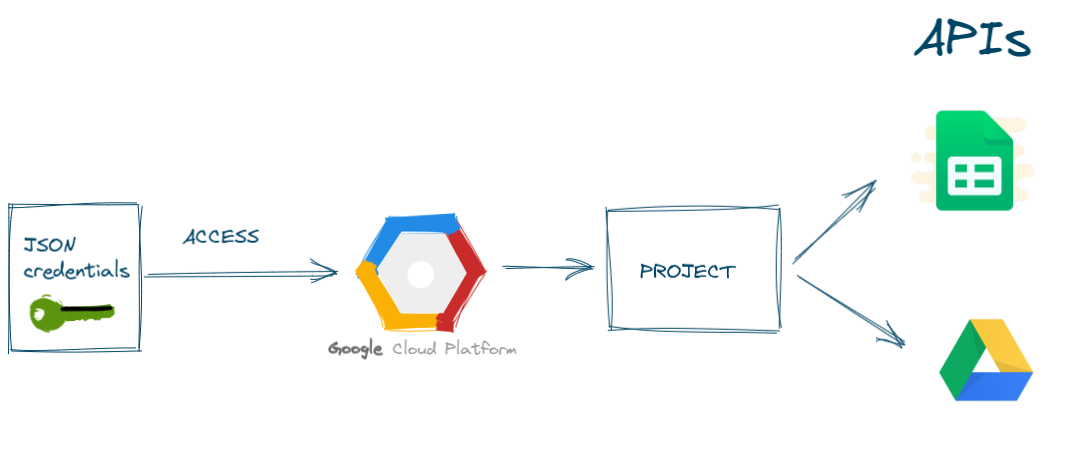
Creating JSON file with credentials to access Google Sheets API is fast and easy. It can be summarized with the following steps.
Create a new project
Enable Google Drive API and Google Sheets API
Create Service Account credentials
Download JSON file with credentials
The schema showing the concept of how does it work.
Create a new project
Please open your Google Cloud console in your web browser. You can open it by navigating the https://console.cloud.google.com/.
In this example, we will create a new project. It will store all details about our connection to Google Sheets API. In my opinion, it is good to have a separate project for accessing a Sheets, because in the case of emergency it is easy to revoke the access.
If it is your first project then you will see the view similar like in the image below:
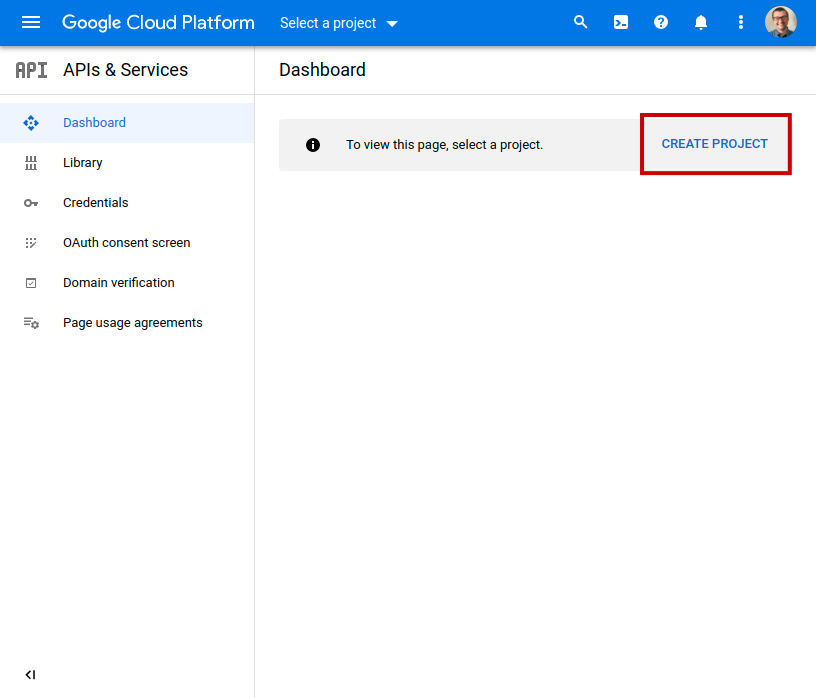
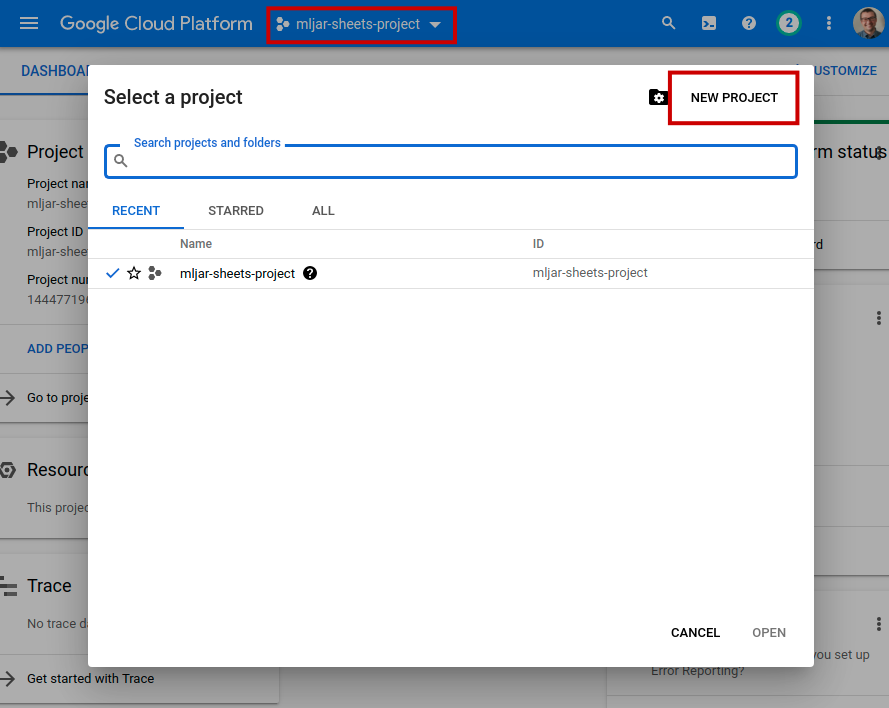
If you already have some projects in your console, please click on
project in the top menu bar, and you will have dialog window with
NEW PROJECT button.
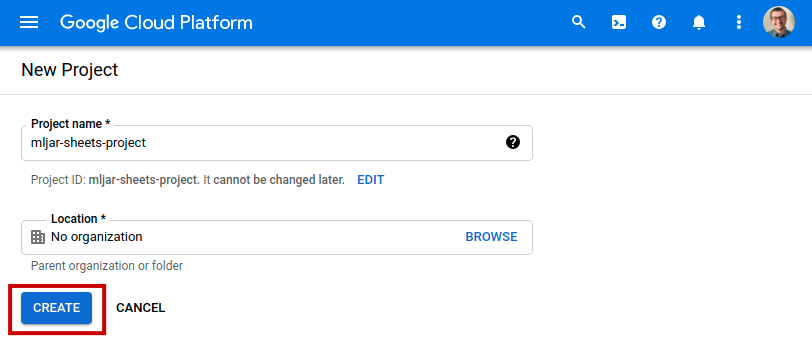
The form for project creation will be displayed. Just set the name and
click CREATE. In this example, I’ve used mljar-sheets-project as
a name. You can leave Location field empty.
After Project creation, you should see view like in the image below.
Please click ENABLE APIS AND SERVICES button to add access to
selected APIs.
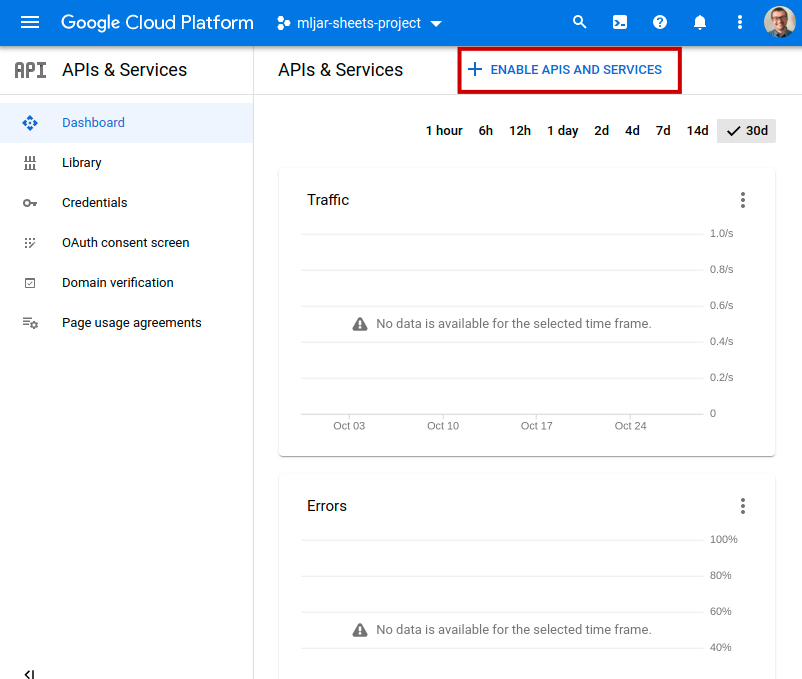
Enable access to APIs in project
In the next step, we will need to enable access to APIs for our project. The project will need to have access to:
Google Drive API
Google Sheets API
Why do we need to give additional access to Google Drive API? It’s because Google Sheets are stored in Google Drive. Changes made on Sheets are also changes on files in the Google Drive.
Let’s search for Google Drive API:
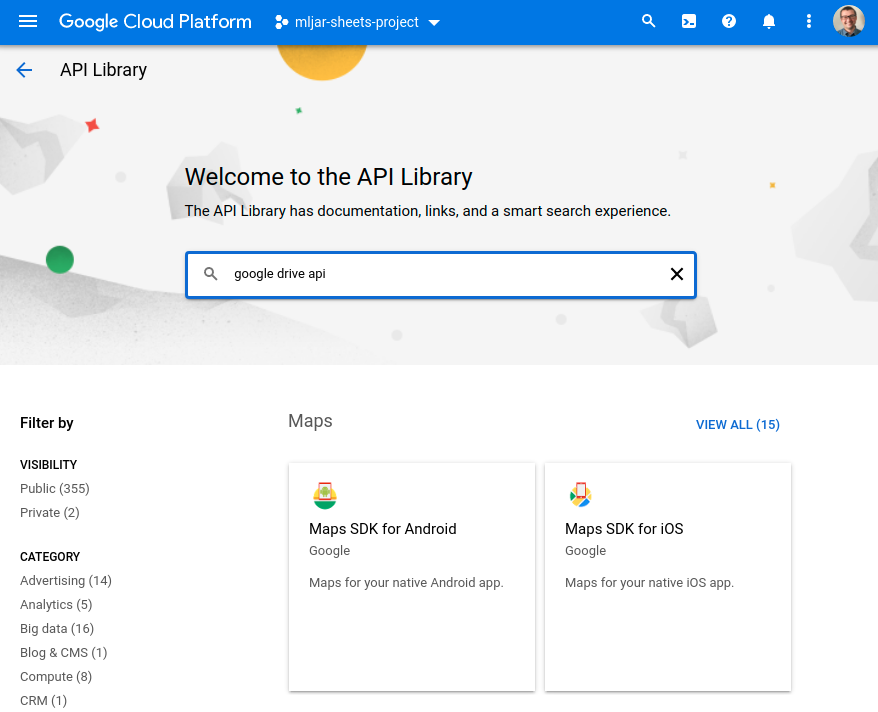
When you found it, just click ENABLE button:
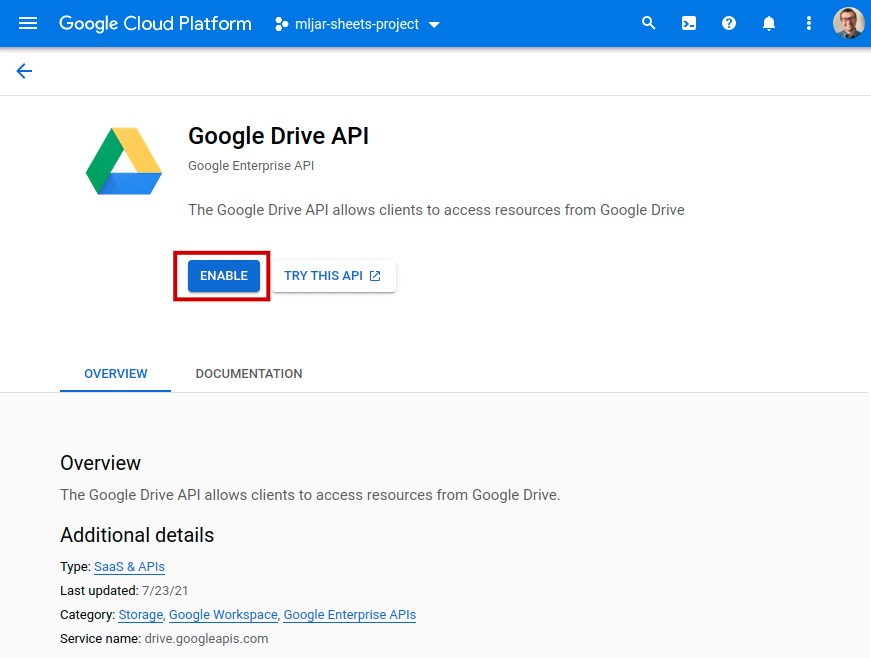
After API is enabled, you will see the below view. Please click on
APIs & Service in the left menu.
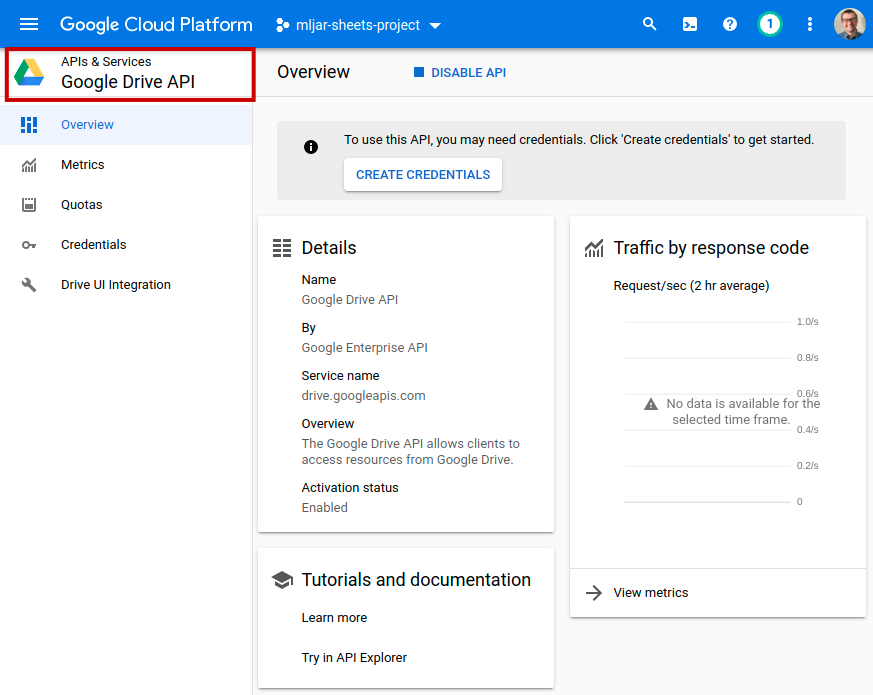
We need to search one more API. Please enter Google Sheets API in
the search box:
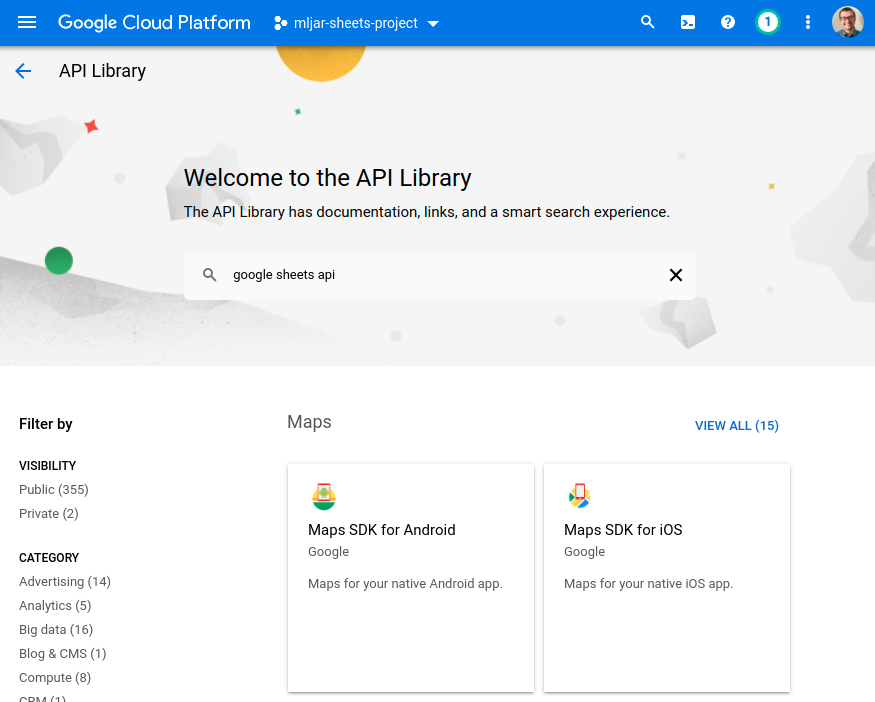
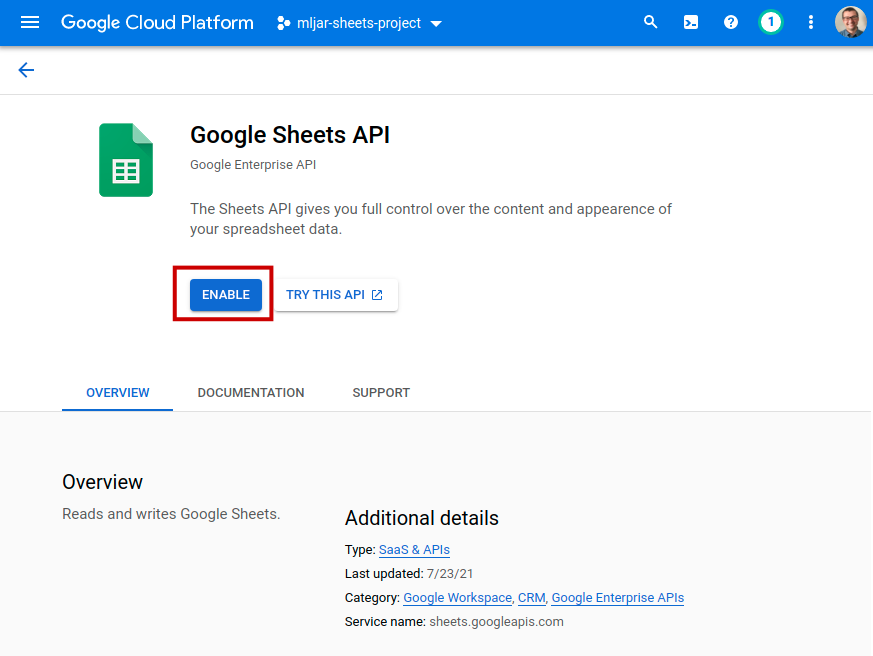
Like before, please enable it with ENABLE button:
Create Service Account credentials
After enabling both (Drive and Sheets) APIs you will have the view like
in the image below. You can click there CREATE CREDENTIALS button.
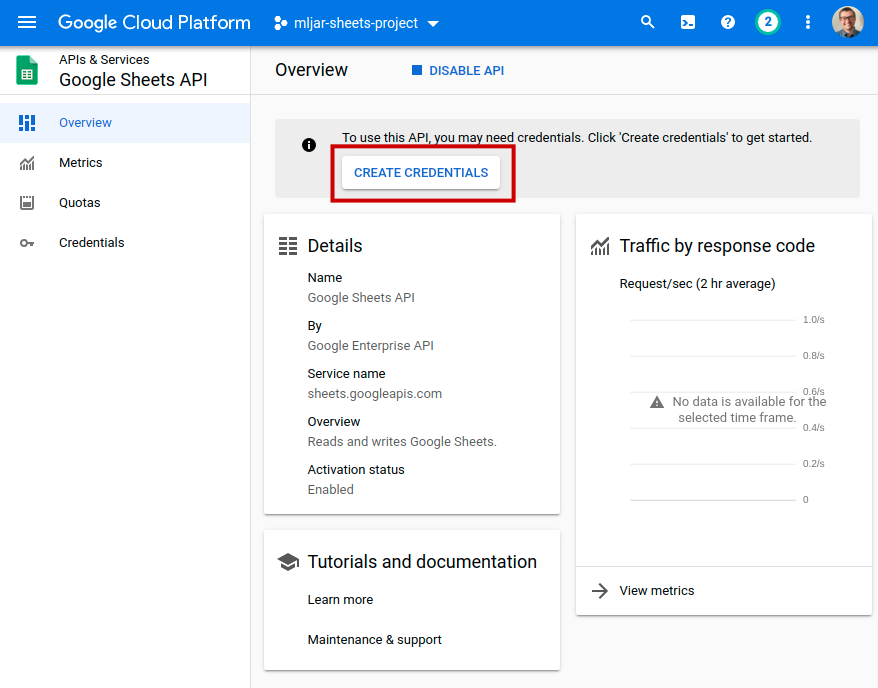
The other option for credentials creation is to go to the project
dashboard and click CREATE CREDENTIALS button there:
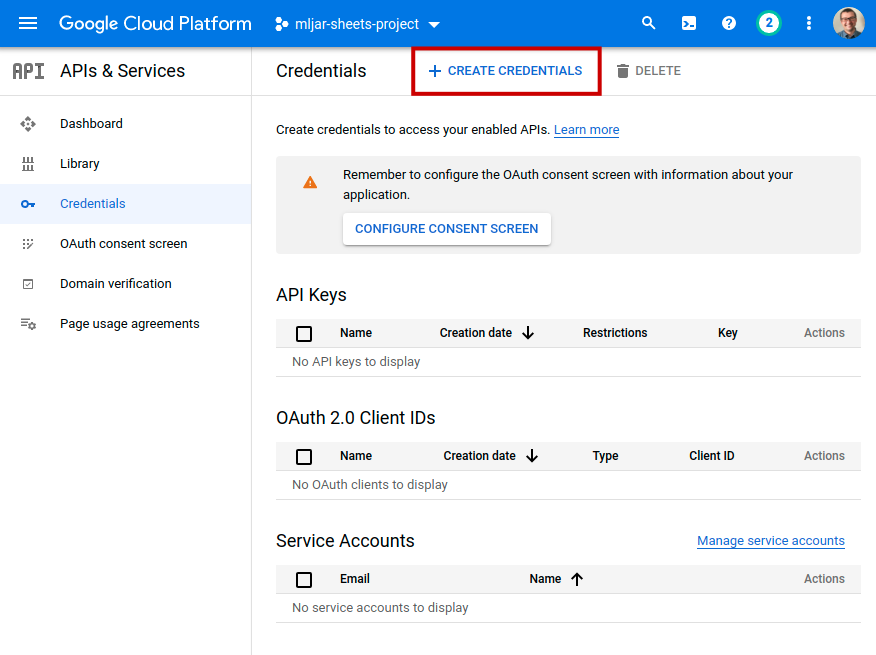
You will have a menu displayed with several options. Please select
Service account.
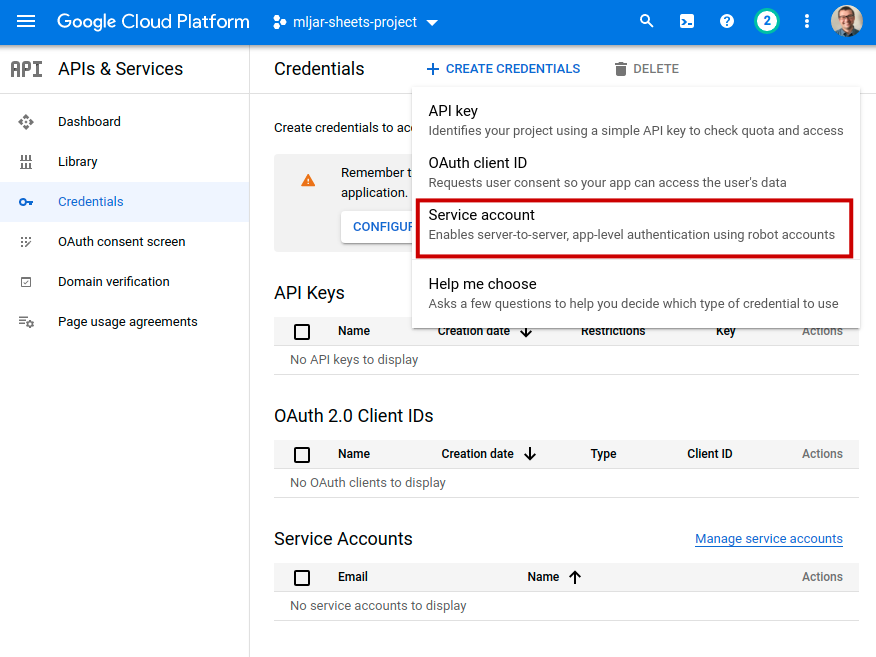
Service Account option will create a new account that we will use only to access Google Sheets API. Google Cloud will create a new email associated with Service Account. We will share selected Spreadsheets with that email. Such solution is good and safe in my opinion. We have an option to set a granular access to the resources that we want to share with our script. In the case of stolen credentials, we simply remove the credentials or even a whole project.
Please fill the Service account name and click CREATE AND CONTINE.
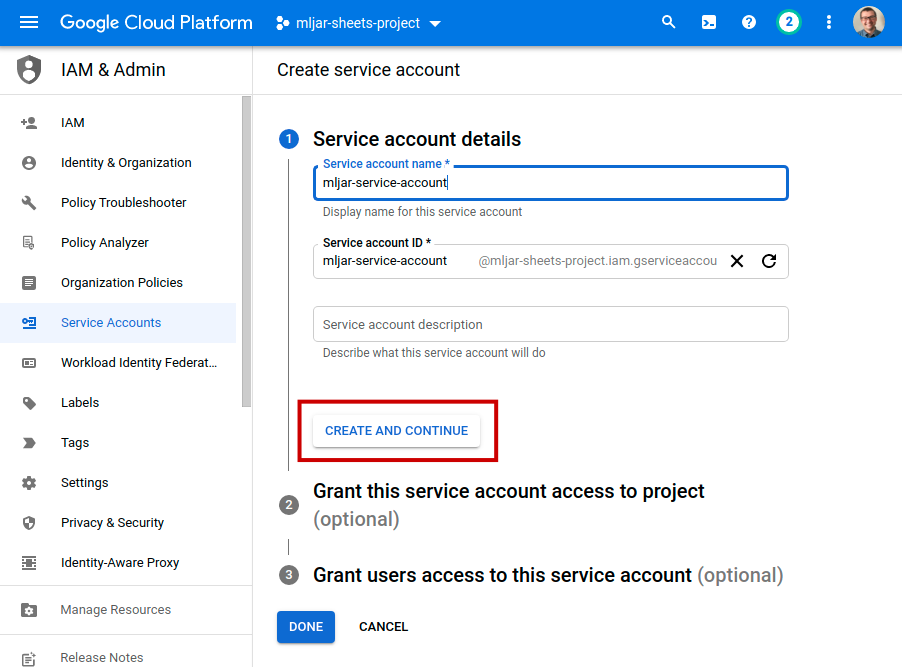
In the next step, set access to the project. In this example, I set the
role to Owner. You can set more restrictive role if needed. Click
DONE button.
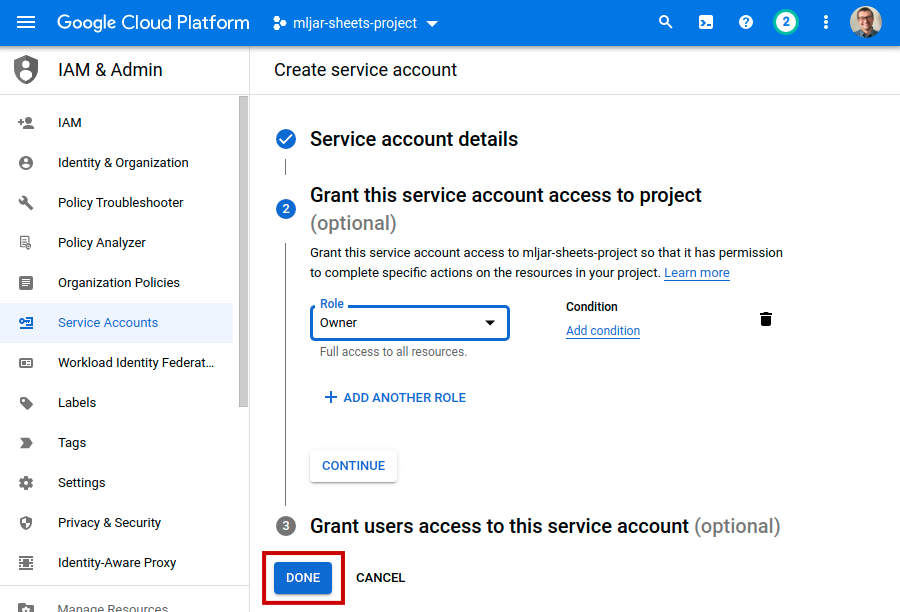
Create JSON file with credentials
After creating the Service Account you will see a view with your credentials. Please click on your Service Account.
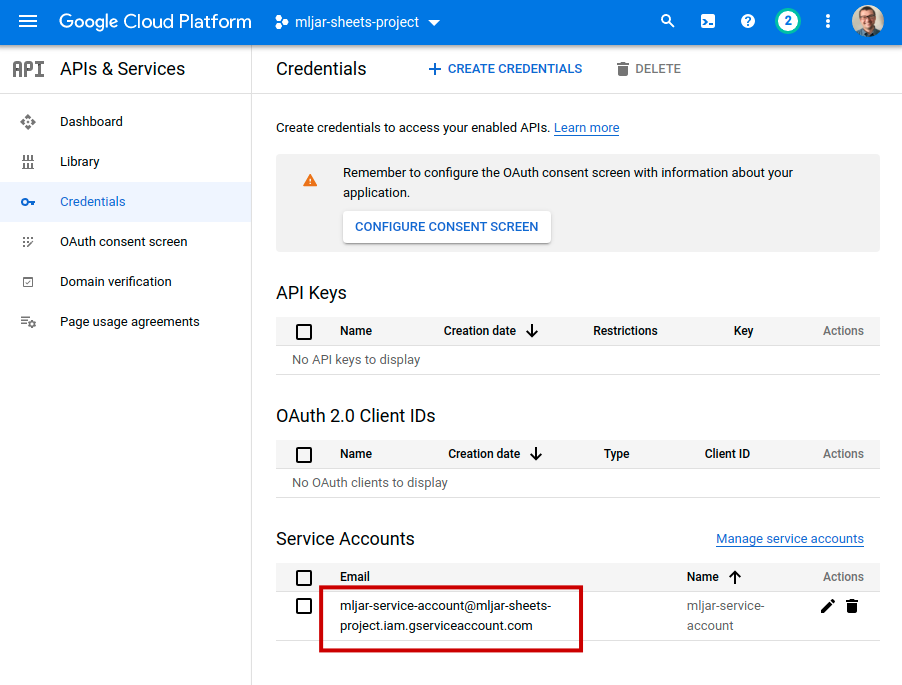
You will see its details. Please select KEYS tab.
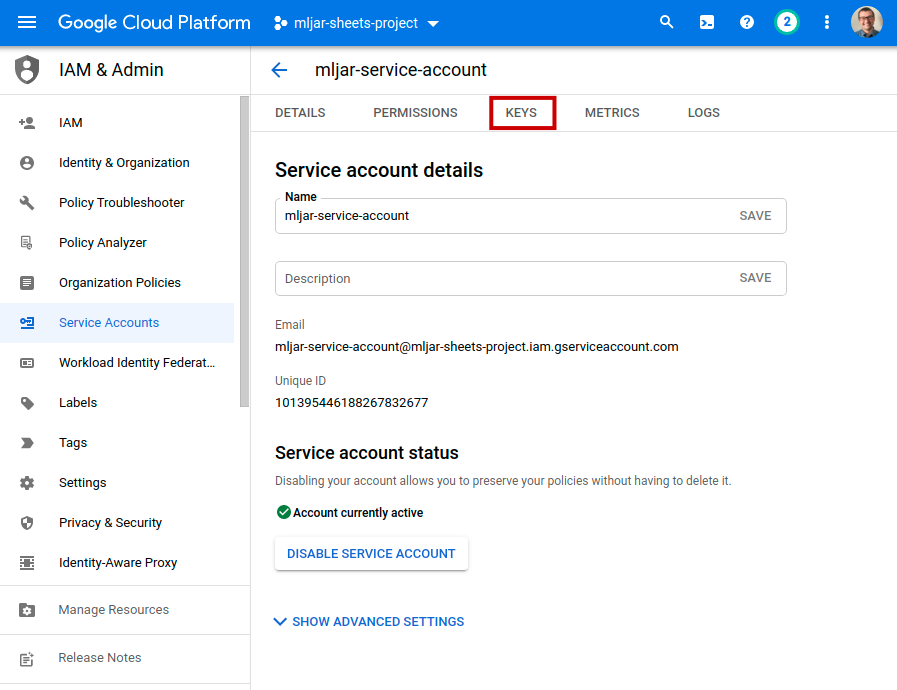
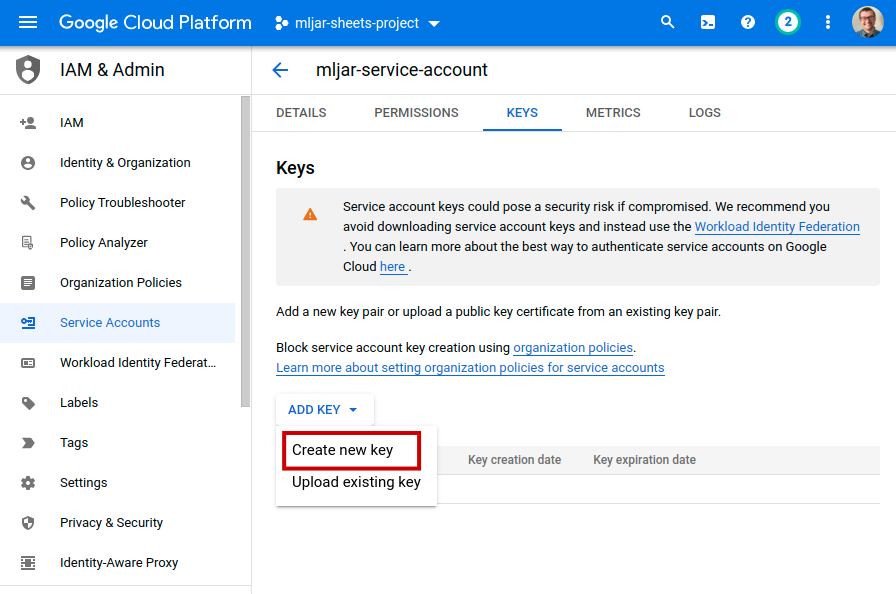
In the KEYS view, just click ADD KEY and Create new key:
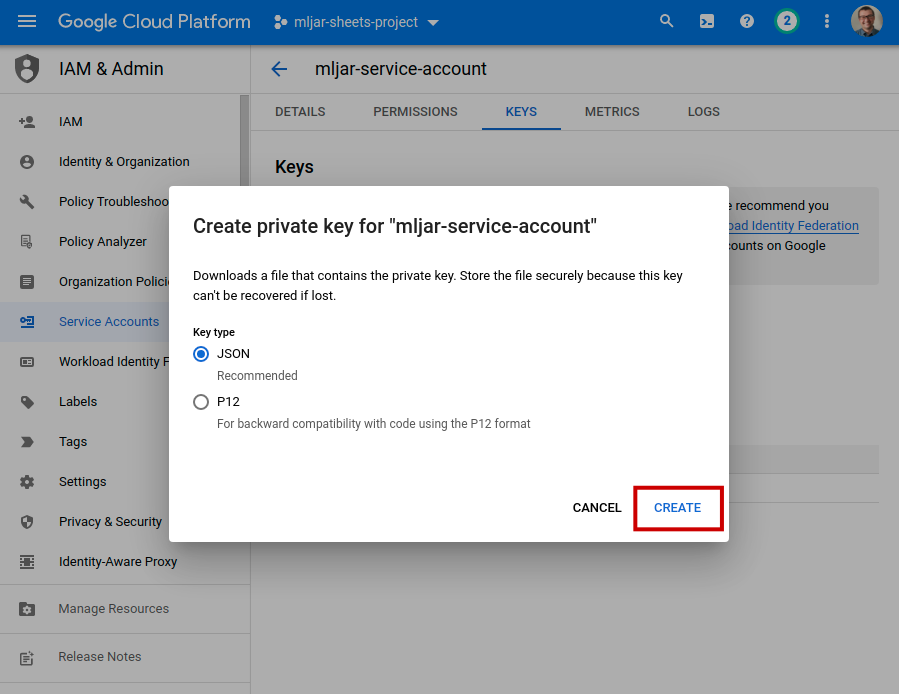
You will see a dialog where you can select the key format. Please select
JSON (should be the default) and click CREATE. It should start
download of your JSON file with credentials.
Grab the JSON file and extract the values of the following keys: private_key, client_email
Agoras parameters
Deprecated since version 2.0: The --google-sheets-* parameters are deprecated. Use --sheets-* parameters instead.