Usage for Instagram
Instagram is a social network that allows you to share photos and videos with your friends and followers. Agoras uses a popular Facebook Graph API client to publish posts. Only publishing is allowed by the API, so you can’t like, share or delete posts.
Required Credentials
Before using Agoras with Instagram, you’ll need to manually extract the following credentials from your Facebook App in the Meta Developer Console. Instagram uses Facebook OAuth, so you’ll need a Facebook App connected to your Instagram business account.
Client ID (
INSTAGRAM_CLIENT_ID): Your Facebook App ID, used as the OAuth client identifierClient Secret (
INSTAGRAM_CLIENT_SECRET): Your Facebook App Secret, used for OAuth authenticationObject ID (
INSTAGRAM_OBJECT_ID): The Facebook User ID that has access to the Instagram business account
See Instagram credentials for detailed instructions on how to create a Facebook App, connect it to your Instagram account, and obtain these credentials.
Available Actions
authorize- Set up OAuth 2.0 authentication (required first step)post- Create Instagram posts with imagesvideo- Upload videos to Instagram
Publish a Instagram post
This command will publish a post on the --object-id (read about how to get the id of an account here). --text is the text of your post (URLs won’t be transformed into clickable links). A instagram post can have a maximum of 2200 characters, so be careful not to exceed it. You can also add up to 4 images in your post using --image-1, --image-2, --image-3 and --image-4, which must be URLs that point to downloadable images.
Note
You must run agoras instagram authorize first before using this command.
New format:
agoras instagram post \
  --object-id "${INSTAGRAM_OBJECT_ID}" \
  --text "${STATUS_TEXT}" \
  --image-1 "${IMAGE_URL_1}" \
  --image-2 "${IMAGE_URL_2}" \
  --image-3 "${IMAGE_URL_3}" \
  --image-4 "${IMAGE_URL_4}"
Like a Instagram post
Action not supported by Instagram Graph API.
Delete a Instagram post
Action not supported by Instagram Graph API.
Post the last URL from an RSS feed into Instagram
This command will parse an RSS feed located at --feed-url, and publish the last --max-count number of entries published in the last --post-lookback number of seconds. The post content will consist of the title and the link of the feed entry. The post will be published on --instagram-object-id (read about how to get the id of an account here).
Note
You must run agoras instagram authorize first before using this command.
Please read about how the RSS feed should be structured in the RSS feed section. This ensures that the feed is correctly parsed and that the post content is properly formatted.
agoras utils feed-publish \
      --network "instagram" \
      --mode "last" \
      --instagram-object-id "${INSTAGRAM_OBJECT_ID}" \
      --feed-url "${FEED_URL}" \
      --max-count "${MAX_COUNT}" \
      --post-lookback "${POST_LOOKBACK}"
Post a random URL from an RSS feed into Instagram
This command will parse an RSS feed at --feed-url and publish one random entry that’s not older than --max-post-age. The post content will consist of the title and the link of the feed entry. The post will be published on --instagram-object-id (read about how to get the id of an account here).
Note
You must run agoras instagram authorize first before using this command.
Please read about how the RSS feed should be structured in the RSS feed section. This ensures that the feed is correctly parsed and that the post content is properly formatted.
agoras utils feed-publish \
      --network "instagram" \
      --mode "random" \
      --instagram-object-id "${INSTAGRAM_OBJECT_ID}" \
      --feed-url "${FEED_URL}" \
      --max-post-age "${MAX_POST_AGE}"
Google Sheets Scheduling
Agoras can schedule Instagram posts using Google Sheets. This allows you to plan and automate post publishing.
Run Scheduled Messages
Process scheduled messages from a Google Sheet:
agoras utils schedule-run \
  --network instagram \
  --sheets-id "${GOOGLE_SHEETS_ID}" \
  --sheets-name "Instagram" \
  --sheets-client-email "${GOOGLE_SHEETS_CLIENT_EMAIL}" \
  --sheets-private-key "${GOOGLE_SHEETS_PRIVATE_KEY}" \
  --instagram-object-id "${INSTAGRAM_OBJECT_ID}"
Note
You must run agoras instagram authorize first before using this command.
Sheet Format
Your Google Sheet should have the following columns:
status_text: Post text contentstatus_link: URL to include in poststatus_image_url_1throughstatus_image_url_4: Image URLs (optional)date: Scheduled date (format: DD-MM-YYYY)hour: Scheduled hour (format: HH, 24-hour format)state: Post state (pending,published,error)
Example sheet row:
status_text,status_link,status_image_url_1,status_image_url_2,status_image_url_3,status_image_url_4,date,hour,state
"This is a test instagram post","https://agoras.luisalejandro.org/en/latest/","https://pbs.twimg.com/media/Ej3d42zXsAEfDCr?format=jpg","https://pbs.twimg.com/media/Ej3d42zXsAEfDCr?format=jpg","","","21-11-2022","17","pending"
Scheduling Logic
Posts with
state="pending"and scheduled time in the past are processedPosts are created at the scheduled date and hour
Sheet state is updated to
publishedafter successful postingIf posting fails, state is updated to
errorUse
--network instagramto process only Instagram posts, or omit to process all networks
How to get --instagram-object-id parameter
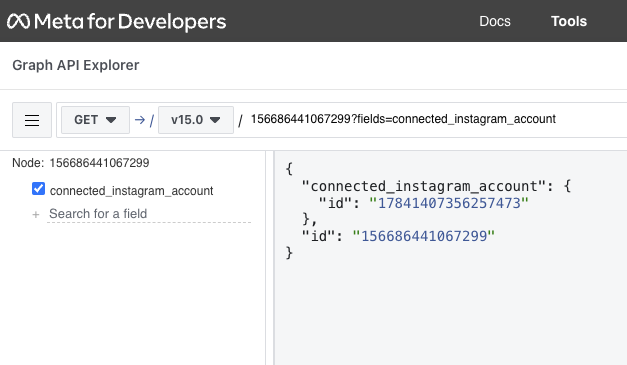
With Agoras you can use the Instagram network to create posts. You’re going to need the ID of the instagram account, for that we’re going to need the id of the facebook page that’s associated with the instagram account. Replace {page_id} in the following URL, then put it on your browser and hit enter:
https://developers.facebook.com/tools/explorer/?method=GET&path={page_id}%3Ffields%3Dconnected_instagram_account
Then click on submit and you’ll see a response like this:
{
      "connected_instagram_account": {
            "id": "ZZZZZZZ"
      },
      "id": "YYYYYYY"
}
“ZZZZZZZ” is your Instagram aacount ID.